Customize record layout brings everything you need to shape how records look and behave into one place. Add and arrange fields and blocks, preview record states, adjust layout settings, and manage multiple layouts.
 How to get started
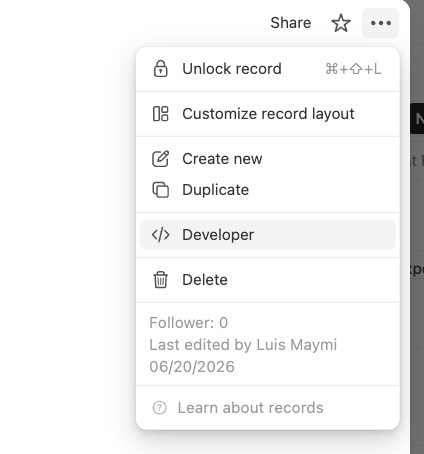
Open any database app or record, click ••• in the top right, then select Customize record layout.
Think of it as the central cockpit for your record layouts.
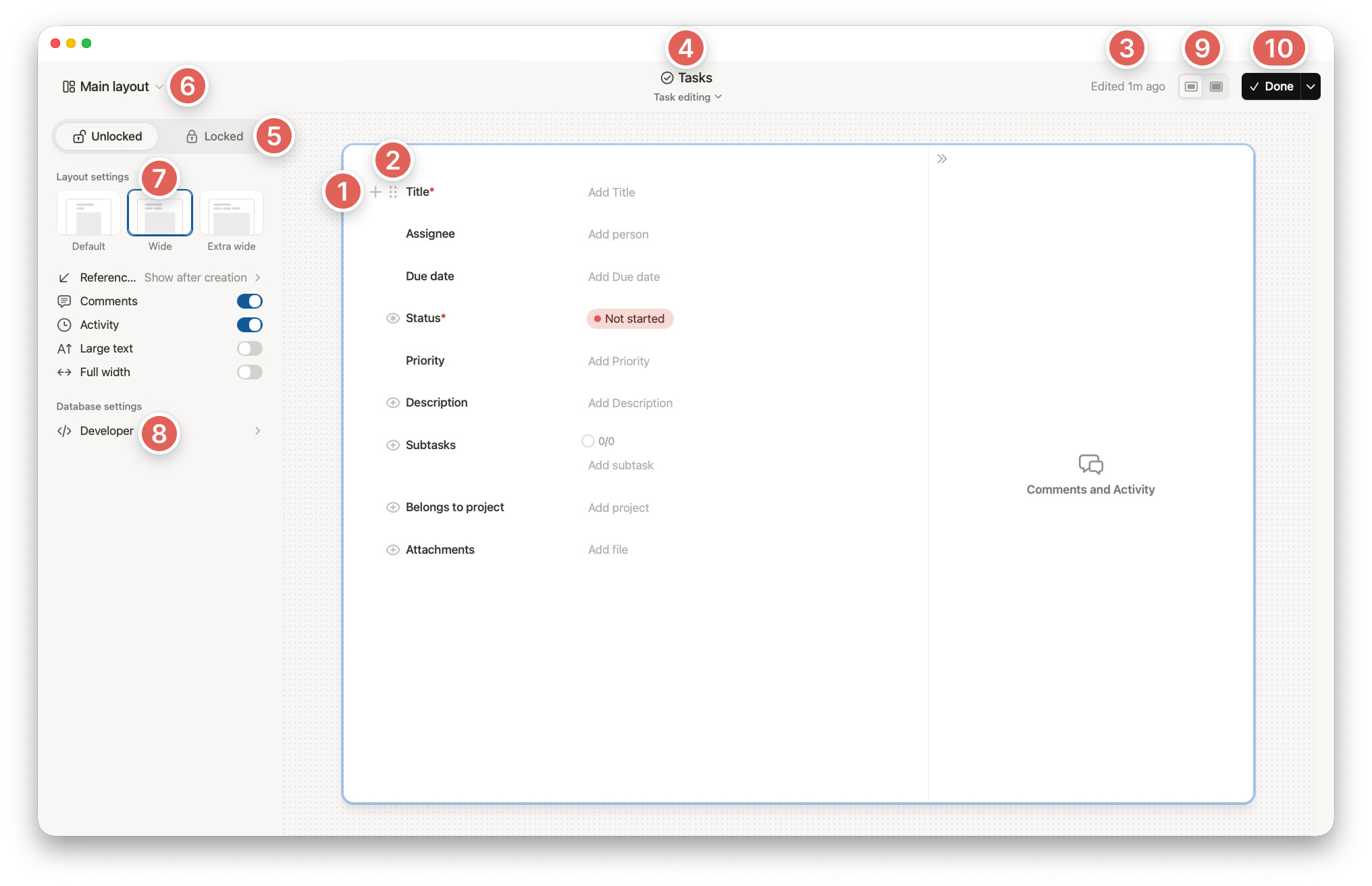
Here’s what you can do in Customize record layout.
1. Add fields and blocks
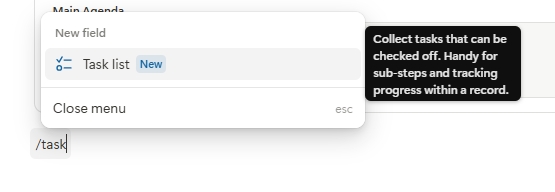
Click the + icon to add a field or block, or type ‘/’ in the document.
- Fields: add structured data such as text, files, calculations, relations, and more ➔
- Blocks: add structure and content with headings, boxes, columns, and more.
2. Edit and move blocks
Click the ⋮⋮ icon to open the menu, or drag to move. Drag blocks side by side to create columns.
3. No need to save
Changes are saved automatically as you work. Hover over the status to see who created and last edited the layout.
4. See it like your team does
Preview the layout when editing, creating, or viewing any existing record.
- Features like the field display option “Show after creation” are reflected automatically, so you can check each stage exactly as users will see it.
- Select any existing record to preview the layout with real data, in read-only mode.
5. Lock to preview
Unlocked lets you edit. Locked shows the record as your team sees it, including display options like “Hide when empty” and rules that show or hide blocks.
6. One database, many layouts (Premium plan)
Create a record layout for each use case and switch between them here.
Each layout uses the same fields and data, but can show, hide, reorder, label, and format them differently. For example, use a separate layout for staging. Build and test changes without affecting the default view. When it’s ready, set it as the default and everyone sees the new layout instantly. Get more details here ➔
7. Layout settings
- Record width: choose between
Default,Wide, andExtra wide - References: choose
Always show,Show after creation, orOff - Comments: show or hide comments in the record sidebar
- Activity: show or hide activity in the record sidebar
- Large text: increase the size of headings and body text
- Full width: remove side margins and use the full available width
8. Developer info
View the Workspace ID, App ID, and each field’s External ID and Field ID. Use Copy fields to copy them for the API or Workflow Automation.
9. Center peek and full page
Switch between both views to preview how the layout looks wherever a record opens.
10. Done
Click Done to close Customize record layout and return to the database.
 Good to know
- Changes apply to every record in that database app.
cmd/ctrl+shift+Lswitches betweenUnlockedandLocked.- Customizing a record requires
Full access. Teammates withCan shareorCan editcan create and fill in records, but not change the layout.
 Start with a template
See a few ready-made examples of how Customize record layout can be used, then adjust them to your own workflow.
Duplicate the  template workspace.
 Enjoy beautiful records
  →
→ 
Thank you for building the future with us.
A big thank you to everyone who shared feedback and kept this request alive. See the community request ➔
For the full story behind the new record experience, see the original post ➔

 This!
This!