APIs can feel very technical when you first read about them.
Over time, the developers on my team received some questions from Tape’s marketing team about the API. They needed to create content around it, but it was not always easy to explain what the API can do, when it matters, and how to make it clear for people who are not developers.
As long as we only talked about it, it was hard to understand.
So we put together a simple practical start that shows what the Tape API can do without writing code.
And it helped. Once people tried it themselves, the API felt much less abstract. It became easier to understand what an API is, what it can return, and why it can be useful.
You do not need a technical background for the first test. If you follow the steps, you can get your first result in about ten minutes.
This guide is the result of our internal process.
We wrote it down so others can follow the same path, start small, and get a first feeling for what is possible with the Tape API.
What you will try
In this guide, you will run three small tests:
Test 1: Read one record from Tape
Test 2: Get an automation usage report
Test 3: Add a new text field to an app
Before you start
A. Get your Tape API key
Your API key is your personal access key for the Tape API.
You can find it here:
- Open Tape
- Click your avatar in the top right
- Open
Preferences - Go to
API - Copy your API key
Your key starts with user_key_.
Important: Your API key gives access to your Tape data through the API. Treat it like a password.
Do not share it in public posts, screenshots, videos, support tickets, emails, or chat messages. If you record your screen or ask someone for help, make sure the key is hidden or removed first.If you think your API key was shared by mistake, generate a new one in Tape and stop using the old key.
B. Set up Postman
Postman is a tool for testing APIs without writing code. You can start with the free plan.
It is a good place to begin if you want to understand API requests without needing technical skills. Later, experts often use other tools, like direct cUrl from the terminal or the respective HTTP client inside the environment they’re working in.
To set it up:
- Go to Postman pricing ➔
- Click
Get Startedin the free plan - Create a free account
- Verify your email address
- Follow the short setup steps until you land in your Postman workspace
Test 1: Read one record
Click for details
1.1 Goal
In this first test, you will ask Tape for one record.
Instead of opening the record in the Tape interface, you send a request to Tape and Tape sends the record data back. That is already using the API.
1.2 Find a record ID
Open a record in Tape that you can access.
Look at the browser URL. The number at the end is the record ID.
You will use that number in the API URL.
For example, if your record ID is 12345, your API URL will look like this:
https://api.tapeapp.com/v1/record/12345
For your first test, choose a record you can open normally in Tape. If you cannot access the record in Tape, the API will not be able to access it either.
1.3 Create the request
Once you are in Postman, create a new HTTP request:
- Click the
+icon next to your collection in the left sidebar - Select
HTTP - A new request opens
- Make sure the request type is set to
GET
GET means: “show me data”.
Now paste the Tape API URL into the field that says Enter URL or paste text:
https://api.tapeapp.com/v1/record/YOUR_RECORD_ID
Replace YOUR_RECORD_ID with the real record ID from Tape.
Example:
https://api.tapeapp.com/v1/record/12345
1.4 Add your API key
Next, add your API key:
- Open the
Authorizationtab - Click the
Auth Typedropdown - Select
Bearer Token - Paste your Tape API key into the token field
Your Tape API key starts with user_key_.
1.5 Send the request
Click Send.
If everything is set up correctly, Postman will show 200 OK and the record data in the response area at the bottom.
That means the request worked.
The response is shown as JSON. For now, you do not need to understand every line. You can already spot a few familiar things, such as the record ID, the record title, the app name, and the workspace name.
In other words: you asked Tape for one record, and Tape answered with the data for that record.
That is your first successful API call.
1.6 Save the request
Your request worked, but it may not be saved yet.
Saving it means you can open and send the same request again later without building it from scratch.
To keep it for later:
- Click
Savein the top right - If Postman asks you to save changes when closing the tab, click
Save changes - Give the request a clear name, for example
Read one record - Choose your collection, for example
My Collection - Click
Save
After saving, the request appears in the left sidebar under your collection.
Think of it like a saved question:
Sendruns the questionSavekeeps the question for later- the left sidebar is where you find your saved questions again
1.7 If you see an error
Errors are normal when testing APIs for the first time. They usually tell you what needs to be fixed.
401 unauthorized
Your API key is missing, wrong, or pasted in the wrong place.
Check that:
· authorization type is Bearer Token
· the key starts with user_key_
· there is no extra space before or after the key
400 bad request with record_no_permission
Postman and your API key are working, but your user does not have permission to access this record.
Try a different record that you can open in Tape.
403 restricted
Your user does not have access to this resource.
Check your permissions in Tape or try another record.
404 not found
The record ID is probably wrong.
Open the record in Tape again and copy the ID from the URL.
Ask AI
AI can also be a good partner while you try this. If you have questions, copy the relevant part of this guide, your API request, and the response or error message from Postman into ChatGPT or Claude. It can help you understand what happened and what to try next.
1.8 What just happened
You sent a request to this address:
https://api.tapeapp.com/v1/record/YOUR_RECORD_ID
Tape checked your API key, checked your permissions, found the record, and sent the record data back.
In Postman, you can see the result in the response area at the bottom.
If the request worked, you should see:
200 OK, which means the request was successful- the
Bodytab, which shows the data Tape returned - a response with information about the record
Postman can show the response in different views.
If you use the JSON view, the response may look technical at first. If you switch to Preview, the same data can be easier to read because it is shown in a cleaner table-like format.
You can already recognize useful values, for example:
record_idshows the ID of the recordrecord_urlshows the link to the record in Tapeapp_idshows which app the record belongs totitleshows the record titlecreated_onshows when the record was createdappcontains information about the app- further down, you may also see field information, such as field IDs, labels, and values
You do not need to understand every line right now.
The important part is this: you asked Tape for one record, and Tape answered with structured data about that record.
This is the basic idea of a lot of API requests:
- choose what you want to do
- send the request
- get a response
Start with one successful request. Once you see the response, you have already taken the hardest step.
Test 2: Get an automation usage report
Click for details
2.1 Goal
Now that your first request works, you can try a second one.
This time, you will ask Tape for an automation usage report.
This shows automation usage over time, grouped by hour, day, week, month, or year.
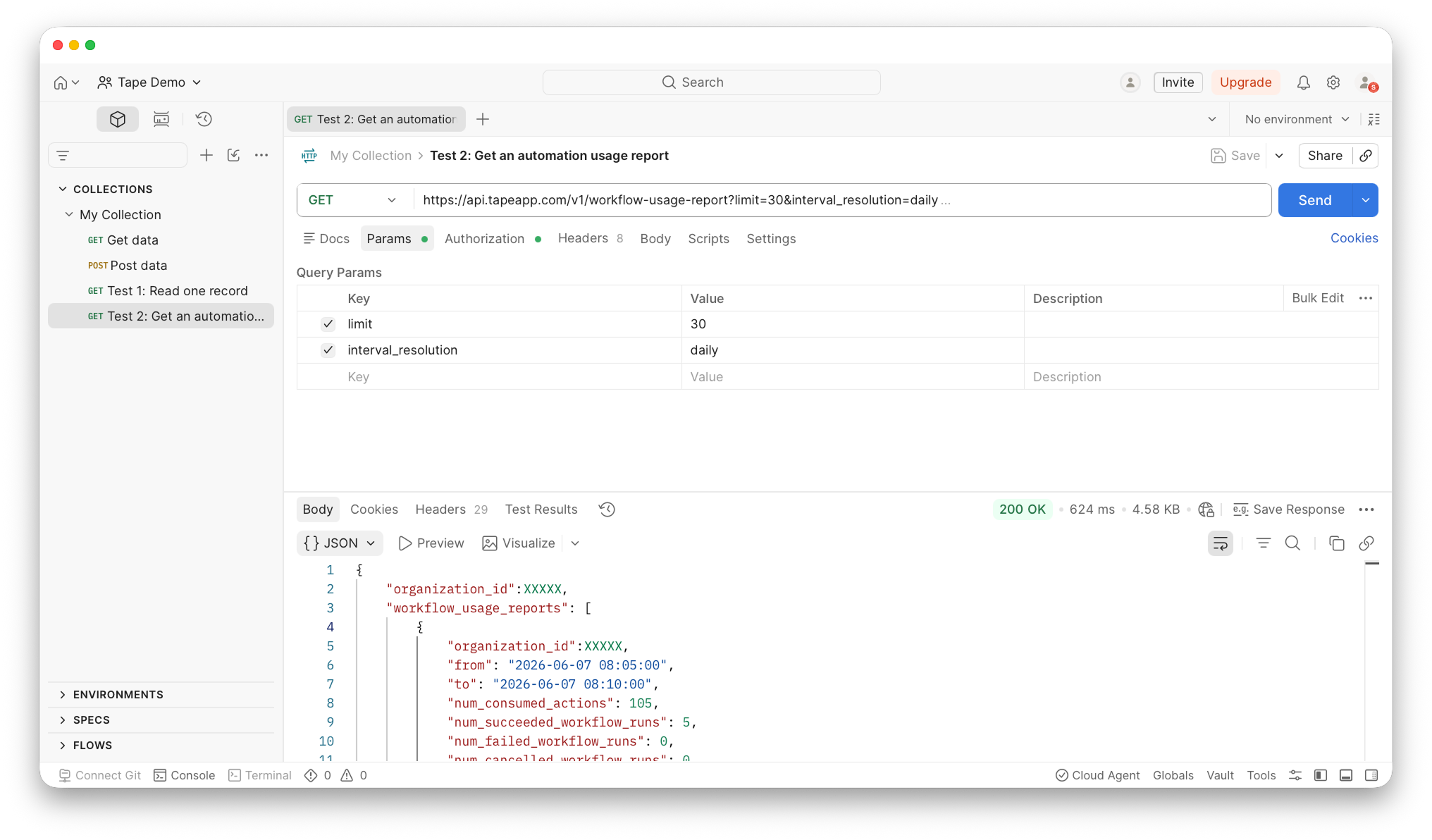
2.2 Create the request
Create a new HTTP request in Postman, like you did in test 1:
- Click the
+icon next to your collection in the left sidebar - Select
HTTP - A new request opens
- Make sure the request type is set to
GET
Now paste this URL into the field that says Enter URL or paste text:
https://api.tapeapp.com/v1/automation-usage-report
2.3 Add params
Now open the Params tab.
Params are extra options you send with the request. They help you tell Tape exactly what you want.
For this report, the params tell Tape:
- how many time periods you want
- how the report should be grouped
Add these two params:
| Key | Value |
|---|---|
limit |
30 |
interval_resolution |
daily |
In this example:
limit = 30means you ask for 30 time periodsinterval_resolution = dailymeans each time period is one day
So this request asks Tape for 30 daily report entries.
Both params are required. limit must be between 0 and 100. interval_resolution can be hourly, daily, weekly, monthly, or yearly.
2.4 Add your API key
Next, add your API key:
- Open the
Authorizationtab - Click the
Auth Typedropdown - Select
Bearer Token - Paste your Tape API key into the token field
Your Tape API key starts with user_key_.
2.5 Send the request
Click Send.
If everything works, Postman will show 200 OK and a response with usage_reports.
That means Tape returned your automation usage report.
2.6 Save the request
Save this request if you want to reuse it later.
You can save it the same way as described in test 1.
2.7 What just happened
You sent a request to this address:
https://api.tapeapp.com/v1/automation-usage-report
Tape checked your API key, read the params you added, and sent back automation usage data.
In Postman, you can see the result in the response area at the bottom.
If the request worked, you should see:
200 OK, which means the request was successful- the
Bodytab, which shows the data Tape returned - a response with
usage_reports
Postman can show the response in different views.
If you use the JSON view, the response may look technical at first. If you switch to Preview, the same data can be easier to read because it is shown in a cleaner table-like format.
You can already recognize useful values, for example:
num_consumed_actionsshows how many automation actions were usednum_succeeded_runsshows how many automation runs succeedednum_failed_runsshows how many automation runs failednum_cancelled_runsshows how many automation runs were cancelled
The report is returned most-recent first. Periods without automation activity are not included, so you may not see an entry for every day.
You do not need to understand every line right now.
The important part is this: you asked Tape for automation usage over time, and Tape answered with structured report data.
This is the basic idea of a lot of API requests:
- choose what you want to do
- send the request
- get a response
Test 3: Add a new text field
Click for details
3.1 Goal
Now that you have read data from Tape, you can try your first small change.
This time, you will add a new text field to an app.
The field will be called: New Field Demo API
This is a good first write test, because the result is easy to check. After the request works, you can open the app in Tape and see the new field.
3.2 Find an app ID
This request changes your app.
For your first test, use a test app or a safe demo app. Do not use an important production app unless you are sure.
You also need the app ID.
To find it:
- Open the database app in Tape
- Click the
•••menu in the top right - Select
Developer - Copy the
App ID
You will use this app ID in the API URL.
For example, if your app ID is 77861, your API URL will look like this:
https://api.tapeapp.com/v1/app/77861
3.3 Create the request
Create a new HTTP request in Postman, like you did in test 1:
- Click the
+icon next to your collection in the left sidebar - Select
HTTP - A new request opens
- Set the request type to
PUT
PUT means: “update something”.
Now paste the Tape API URL into the field that says Enter URL or paste text:
https://api.tapeapp.com/v1/app/YOUR_APP_ID
Replace YOUR_APP_ID with the real app ID from Tape.
Example:
https://api.tapeapp.com/v1/app/77861
3.4 Add the JSON body
This request needs a body.
The body is the data you send to Tape. In this case, it tells Tape which field to create.
Open the Body tab:
- Select
raw - Open the format dropdown next to
raw - Choose
JSON - Paste this body:
{
  "fields": [
    {
      "field_type": "single_text",
      "config": {
        "label": "New Field Demo API",
        "description": "Created through the Tape API.",
        "required": false
      }
    }
  ]
}
If the JSON appears in one long line, click Beautify to make it easier to read.
The request can still work even if the JSON is shown in one line. Beautify only makes it more readable.
This tells Tape:
- create one new field
- make it a text field
- name it
New Field Demo API - do not make it required
3.5 Add your API key
Next, add your API key:
- Open the
Authorizationtab - Click the
Auth Typedropdown - Select
Bearer Token - Paste your Tape API key into the token field
Your Tape API key starts with user_key_.
3.6 Send the request
Click Send.
If everything works, Postman will show 200 OK.
That means Tape updated the app.
3.7 Save the request
Save this request if you want to reuse it later.
You can save it the same way as described in test 1.
3.8 What just happened
You sent a request to this address:
https://api.tapeapp.com/v1/app/YOUR_APP_ID
Tape checked your API key, read the JSON body you added, and updated the app.
In Postman, you can see the result in the response area at the bottom.
If the request worked, you should see:
200 OK, which means the request was successful- the
Bodytab, which shows the data Tape returned - a response with the updated app data
Postman can show the response in different views.
If you use the JSON view, the response may look technical at first. If you switch to Preview, the same data can be easier to read because it is shown in a cleaner table-like format.
You can search the response for:
New Field Demo API
You can also open the app in Tape and check whether the new field appears there.
You do not need to understand every line right now.
The important part is this: you asked Tape to add a text field, and Tape updated the app structure.
This is the basic idea of a lot of API requests that change something:
- choose what you want to change
- send the request with the needed data
- check the response
Quick glossary
You do not need to memorize this.
Use it when a word shows up and you want a simple explanation.
Basic API actions
Most API requests use one of a few basic actions:
| Action | Meaning |
|---|---|
GET |
Read data |
POST |
Create something new |
PUT |
Update something |
DELETE |
Remove something |
What you can work with
The Tape API lets you work with different parts of Tape.
For example, you can use it to:
- read, create, update, or delete records
- work with field values
- read or create record comments
- access record revisions
- manage record sharing and permissions
- work with apps and fields
- access users, workspaces, and organizations
- upload or work with files
- use webhooks
- work with filters
- request automation usage reports
This guide only uses a few examples. The full API documentation shows all available resources and actions.
Common terms
| Term | Meaning |
|---|---|
| API | A way for another tool to talk to Tape |
| Request | The question or instruction you send to Tape |
| Response | The answer Tape sends back |
| Endpoint | A specific API URL |
| API key | Your personal access key |
| Bearer Token | The auth type used in Postman |
| JSON | The structured format Tape sends back or receives |
| Params | Extra options added to a request |
| Body | Data you send with a request |
| Status code | A number that tells you if the request worked |
| 200 OK | The request worked |
| 401 unauthorized | The API key is missing or wrong |
| 404 not found | Tape could not find the requested item |
What you can use the API for
APIs are useful when you want Tape to work together with other tools or systems.
Here are a few common use cases.
Create records from another system
A form, website, or external tool can create new records in Tape automatically.
For example:
· new support tickets
· new orders
· new project requests
Keep systems in sync
If customer data changes in another tool, the API can update the matching record in Tape.
For example:
· update a customer address
· sync a status
· update billing or contract data
Build custom tools on top of Tape
Developers and partners can use the API to build tools that work with Tape data.
For example:
· internal admin panels
· custom integrations
· industry-specific workflows
If you want to see real examples of what can be built with the API, take a look at what Tape partners and builders have created on top of Tape, from migration tools to portals, alerts, AI assistants, and custom integrations. Tape Integration Gallery ➔
When to ask an expert
This guide is for getting started.
If your project is business-critical, complex, or touches a lot of data, it is worth involving someone experienced. That is especially true for:
· large imports
· migrations from other tools
· multi-step automations
· customer-facing integrations
· billing or contract workflows
· reporting dashboards used by management
· anything that writes or deletes large amounts of data
Certified Tape partners work on these kinds of projects every day. They have experience with real business processes, many different installations, complete system builds, and complex enterprise setups.
The API is powerful, especially when it becomes part of a real business process. A good expert helps you use it safely and avoid mistakes when workflows become more complex.
If you want support, you can work with one of the certified Tape partners  Tape partner directory
Useful links
What’s next
If you are using an API for the first time, start with the three tests above.
Start small. Run one request. Then run the next one. Then change one value and send it again.
If you are already more experienced, we would love to hear from you:
What is your favorite Tape API use case? What have you built, connected, or automated?
Share it in the comments so others can see what is possible.