A guide for translating Tape. Read it once before you start, then come back whenever you need help.
Tape translators are our local heroes. They know their language, understand software, and know how Tape works. Each language has a small group, invited by the Tape team. Thank you for helping us make Tape feel natural for local users.
Contents
 How to decide on a translation
 First setup
 Basics and key concepts
 Change translations in 6 quick steps
 Search
 String editor, a tour
 Glossary
 Activities
 Feedback
 FAQs
FAQs
How to decide on a translation
Thousands of users rely on Tape every day. Please only suggest changes when something is clearly wrong.
Start in Tape, not in Weblate. When you see a real translation issue while using Tape, open Weblate and fix that exact string. Please do not browse Weblate looking for things to improve. The same word can appear in many places, and each change affects the product.
Change as little as possible. A new wording can make existing help center articles, screenshots, community posts, and user instructions harder to follow, because they may still show the old text. If the current translation is okay, please leave it. Only suggest a change when something is clearly wrong.
This is not about making text sound nicer. It is only about fixing real translation issues, for example:
- A German word accidentally left inside an English string.
- 60 places use “Administrador” in Portuguese (Brazil) and one still says “Admin.”
- A variable name showing as plain text instead of being kept as is.
When you are unsure, please do not guess. Check how trusted software tools translate the same concept.
First setup
We use Weblate to manage Tape translations. Set up your account once, then you are ready to suggest changes.
- Activate your account. Click Confirm invitation in the email from
weblate@tapeapp.com. Please check your spam folder too. Follow the steps and set a password. - Interface language. Open the Languages tab. Set the interface language to English, so Weblate matches this guide.
- Notifications. Open the Notifications tab. Set everything to No notification except Comment was added → Instant notification. Click Save at the bottom.
- Profile picture (optional). Create a free account at gravatar.com with the same email. Your picture should appear in Weblate within 24 hours.
- Back to home. Click Tape Translations at the top left.
- Please read this guide once. It only takes a few minutes and answers the most common questions.
Basics and key concepts
 Useful links
| 🏠 Project home | weblate.tapeapp.com/projects/tape/ |
| 🔍 Search (find any string) | weblate.tapeapp.com/projects/tape/#search |
| 📝 Activities | weblate.tapeapp.com/projects/tape/#history |
| 📖 Glossary | |
| · 🌐 English | weblate.tapeapp.com/browse/tape/glossary/en/ |
| · 🇩🇪 Deutsch | weblate.tapeapp.com/browse/tape/glossary/de/ |
| · 🇧🇷 Portuguese (Brazil) | weblate.tapeapp.com/browse/tape/glossary/pt_BR/ |
 How Weblate is structured for us
Each language has two components in Weblate:
- Web App: the main product translations.
- Glossary: protected Tape terms, read-only for translators.
Languages:
 English (Tape’s source language. The codebase and all original strings are written in English. Every other language is a translation from English.)
 Deutsch
 Português brasileiro
- more coming
Weblate has its own structure. If you know Tape, you can think of it like this:
- Tape organisation = project in Weblate. weblate.tapeapp.com/
- Tape workspace = language workspace in Weblate. Each language has its own workspace:
- Tape database app = component in Weblate. Each language workspace has two components:
- Tape record = string in Weblate. Each component has many strings.
- Tape unique ID = string key in Weblate. Every string has its own key.
The breadcrumb at the top left shows where you are, for example Tape / Web App / Portuguese (Brazil).
On every level, project, workspace, or component, you can use:
- Search: searches only the level you are on. For example, if you are in the English Glossary, Search only looks inside the English Glossary.
- Insights History: shows activities only for the level you are on. For example, if you are in the German Web App, it only shows activities for the German Web App.
This works like a table search in Tape. It only searches inside the component you are on.
We recommend using the global search:
weblate.tapeapp.com/projects/tape/#search
 Core concepts
- Glossary. A protected list of official Tape terms for each language. Use these terms in the same way across Tape. Glossary terms can appear as purple highlights in the String editor. The purple Glossary label also shows when you are inside the Glossary component.
- String editor. The detail view of one string. Here you suggest a translation, read comments, check history, and see related information. See String editor, a tour below.
- String. One translation entry, for example
New {{Name}}. Every place in Tape has its own string. A word like “Member” can appear in many strings. If you change one string, the others stay the same. - Source string. The English original of a string. Every other language is translated from it.
- String key. The unique key of a string, for example
server.i18n.blab-def.blab-def-create.newBlabItemsChannelName. Paste the full key into Search to find the string in any language. - Variables. Keep variables exactly as they are, for example
{name},%s, or{{blabName}}. Please never translate them. - Plurals. Some strings have plural forms. For Portuguese (Brazil), fill in both fields: One and Other. Both are required.
- Components. Each language has two Components: Web App and Glossary.
 Process
Tape is already fully translated for every supported language. Please only fix real translation issues. See How to decide on a translation above.
After you submit a suggestion, this is what happens:
You suggest → AI-assisted review → Approved suggestion creates a PR → Goes live in Tape within about two weeks.
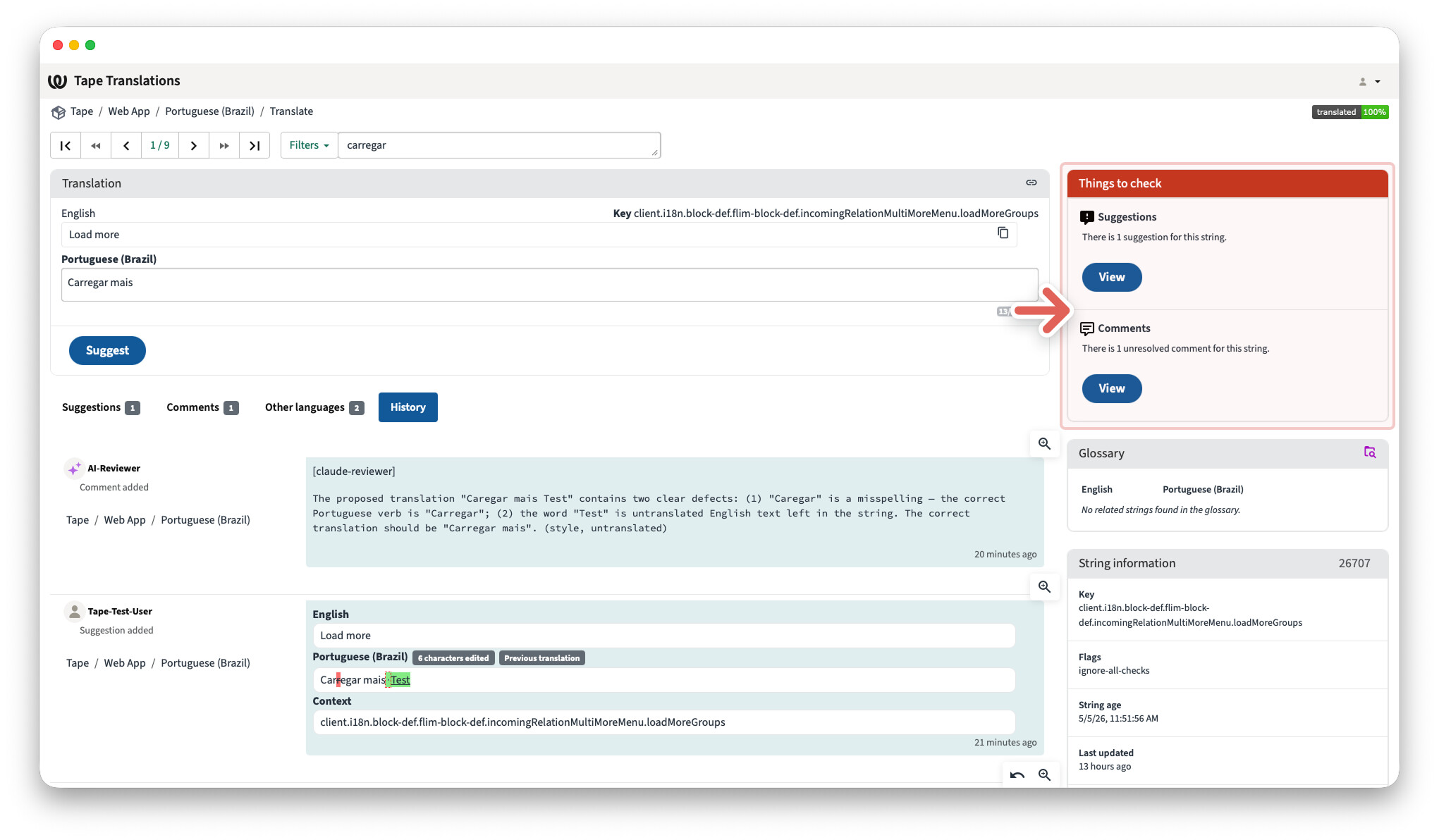
 How a suggestion gets approved
Glossary. Tape has official terms for each language. Please use them. For example, “Record” is “Eintrag” in German and “Registro” in Portuguese (Brazil). A different word for a Glossary term may be rejected.
Variables. Keep variables exactly as they are, for example {name}, {{blabName}}, or %s. If you change or remove them, the suggestion gets rejected.
Language rules. Each language has its own rules. For example, German uses informal “du”, “Eintrag” for Record, and … for the ellipsis. Other languages have their own rules.
AI review. The AI reviewer checks Glossary terms, variables, and language rules. It can also compare translations with trusted software tools to see how similar concepts are translated there.
Each suggestion has one of two outcomes:
- Approved: ships via PR within about two weeks.
- Rejected: gets a comment on the string explaining what needs to change.
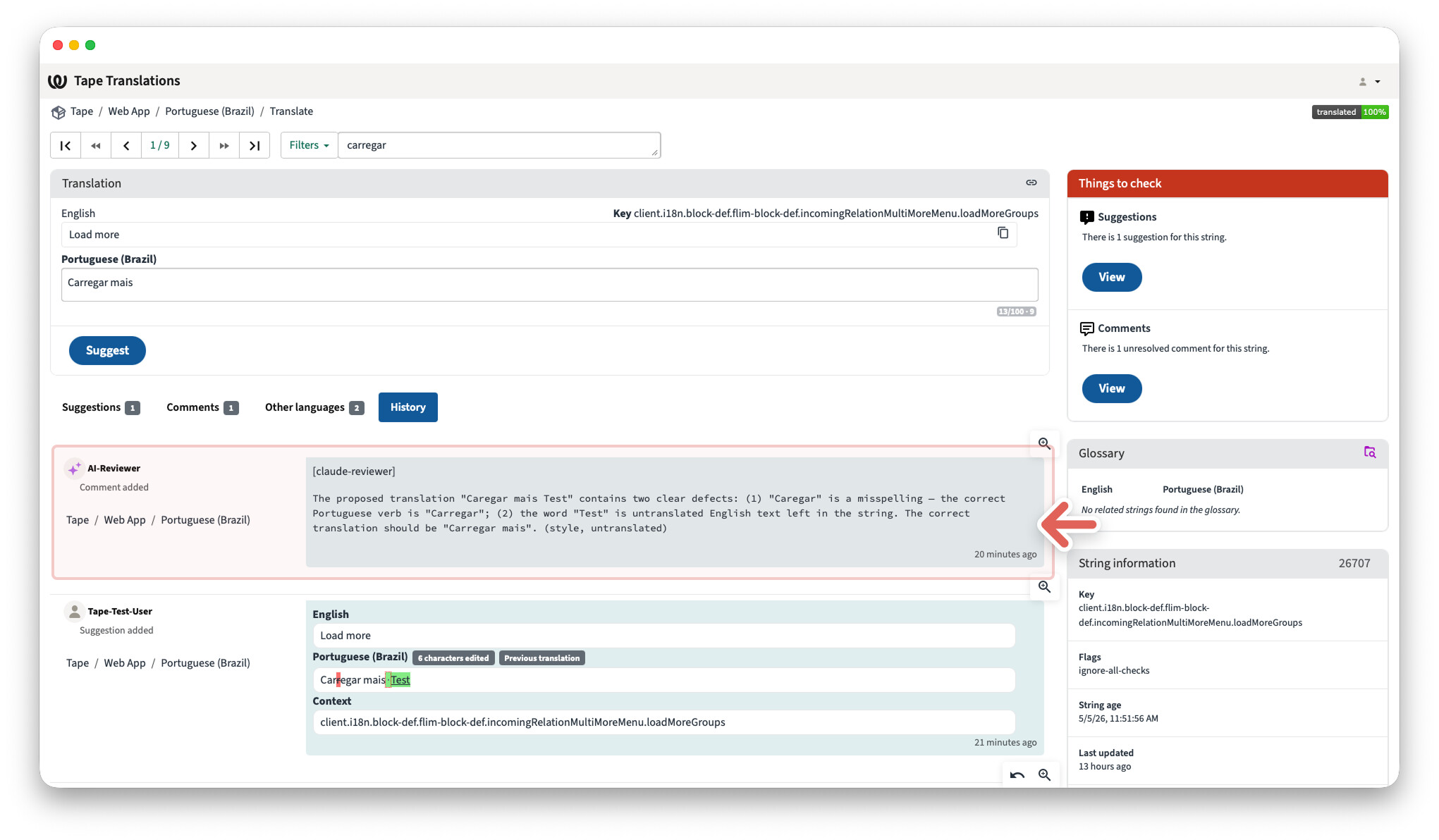
Change translations in 6 quick steps
Start in Tape. When you see a real translation issue, open Weblate and fix that exact string.
Watch the 6 steps in action:
- Log in at weblate.tapeapp.com/.
- Open Search: weblate.tapeapp.com/projects/tape/#search
3.Enter your word or sentence, then pressEnter. - Click the matching string in the result list.
- Edit your translation in the translation field.
- Click Suggest.
Done. The AI-assisted review picks it up. Approved suggestions ship within about two weeks.
Search, a tour
Use Search to find the exact string you want to change.
weblate.tapeapp.com/projects/tape/#search
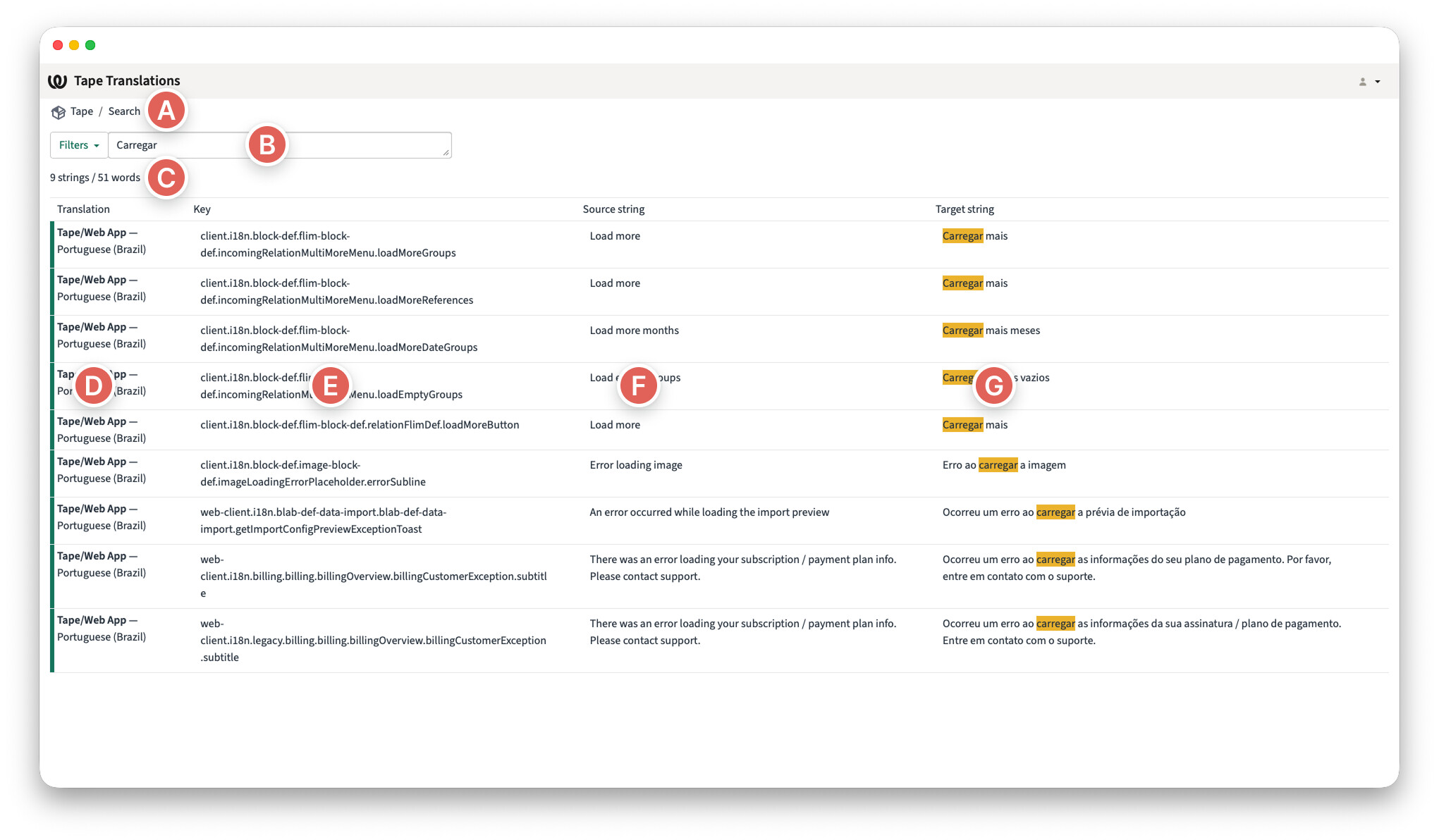
- (A) Breadcrumb path
Tape / SearchShows that you are using global search. - (B) Search field
Carregarshows the word or text you entered into search. - (C) Search result
9strings/51wordsShows how many strings were found and how many words they contain. - (D) Translation column. Shows the component and language for each result, for example
Tape/Web App, Portuguese (Brazil). - (E) String key column. Shows the unique string key from the codebase, for example
client.i18n.block-def.flim-block-def.incomingRelationMultiMoreMenu.loadMoreGroups. - (F) Source string column. Shows the English source text, for example
Load moreorError loading image. - (G) Target string column. Shows the translated strings that match your search. Search matches are highlighted, so you can quickly see where your search term appears.
target:r"(?i)^YOUR TEXT HERE$"into the search field.
String editor, a tour
The String editor is the detail view of one translation entry. Use it to edit the translation, add comments, and review related information.
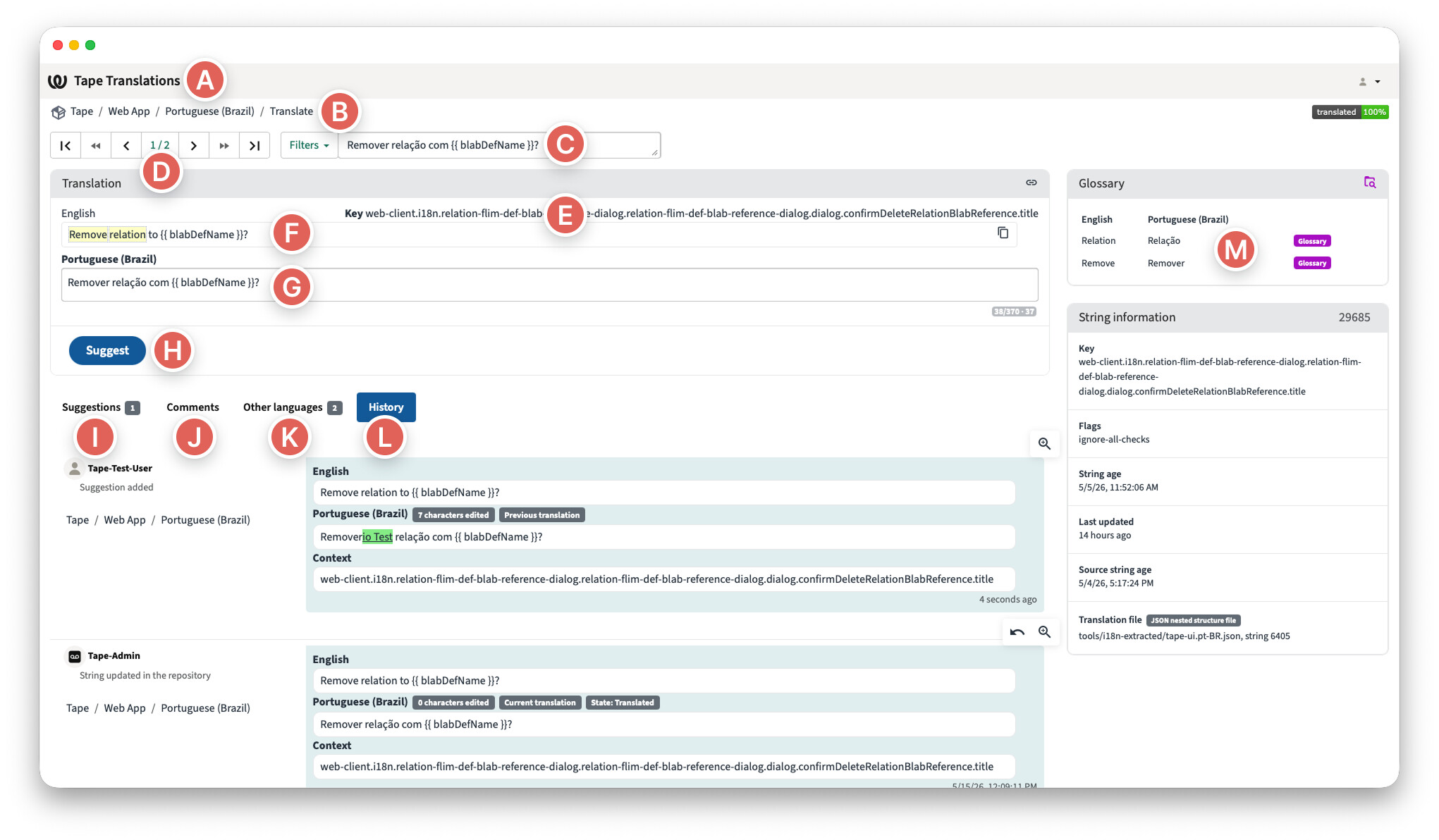
- (A) Project home
Tape TranslationsClick to go back to the project home. - (B) Breadcrumb path
Tape / Portuguese (Brazil) / TranslateShows where you are. - (C) Search result position
4/964Shows your current position in the search results. Use the arrows to move between strings. - (D) Search field Shows the word, phrase, or string key you searched for.
- (E) String key Shows the unique key of this string. The key identifies one exact place in Tape and is the same for that place in every language.
- (F) English source Shows the original English text.
- (G) Translation field Write your suggested translation here. Keep variables like
{{formattedDate}}and HTML tags like<b>exactly as in the source. - (H) Suggest button Sends your change to the AI-assisted review.
- (I) Suggestions tab Shows other suggestions for the same string.
- (J) Comments tab Shows comments about this string. You can also add a new comment if you have a question or suggestion for this exact string.
- (K) Other languages tab Shows the same string in other languages.
- (L) History tab Shows who changed what and when.
- (M) Glossary panel Shows the official Glossary terms that appear in this string. If the string contains several Glossary terms, you may see several entries here. These terms are set by Tape and cannot be changed by translators.
Glossary, a tour
The Glossary is the protected list of official Tape terms. You do not need to edit it. If you are interested, you can open it here and see all Glossary entries for each language.
| 🌍 English | weblate.tapeapp.com/browse/tape/glossary/en/ |
| 🇩🇪 Deutsch | weblate.tapeapp.com/browse/tape/glossary/de/ |
| 🇧🇷 Português brasileiro | weblate.tapeapp.com/browse/tape/glossary/pt_BR/ |
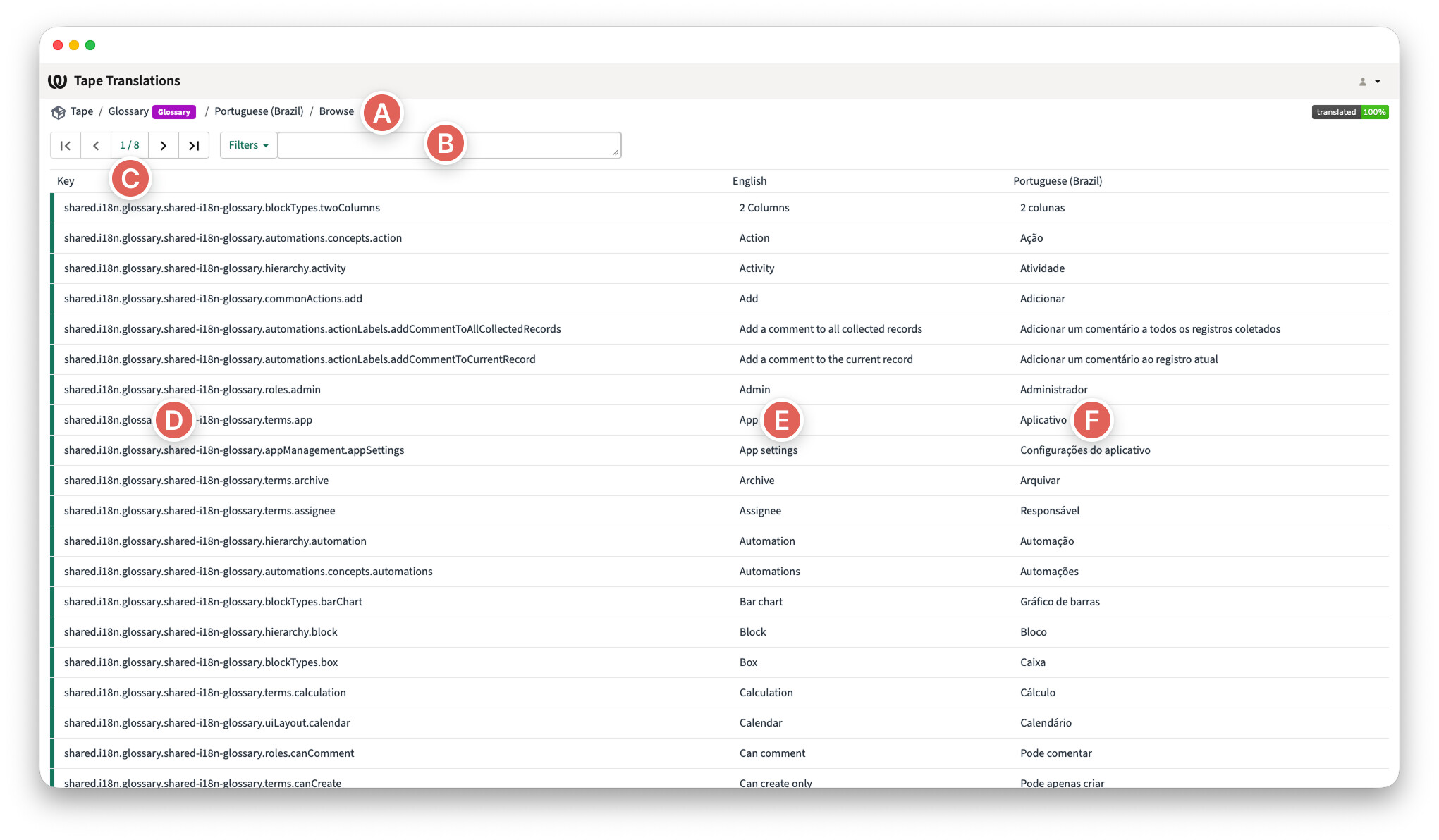
- (A) Breadcrumb path
Tape / Glossary / Portuguese (Brazil) / BrowseShows that you are inside the Glossary for Portuguese (Brazil). - (B) Search field Use it to search inside the Glossary.
- (C) Page navigation
1/8Shows which page you are on. Use the arrows to move between Glossary pages. - (D) String key column Shows the unique string key for each Glossary entry.
- (E) English column Shows the official English source term or phrase.
- (F) Portuguese (Brazil) column Shows the official Portuguese (Brazil) translation for the Glossary entry.
Activities, a tour
Activities show what changed in Weblate. Use this page if you want to review recent updates or find changes from a specific user.
weblate.tapeapp.com/projects/tape/#history
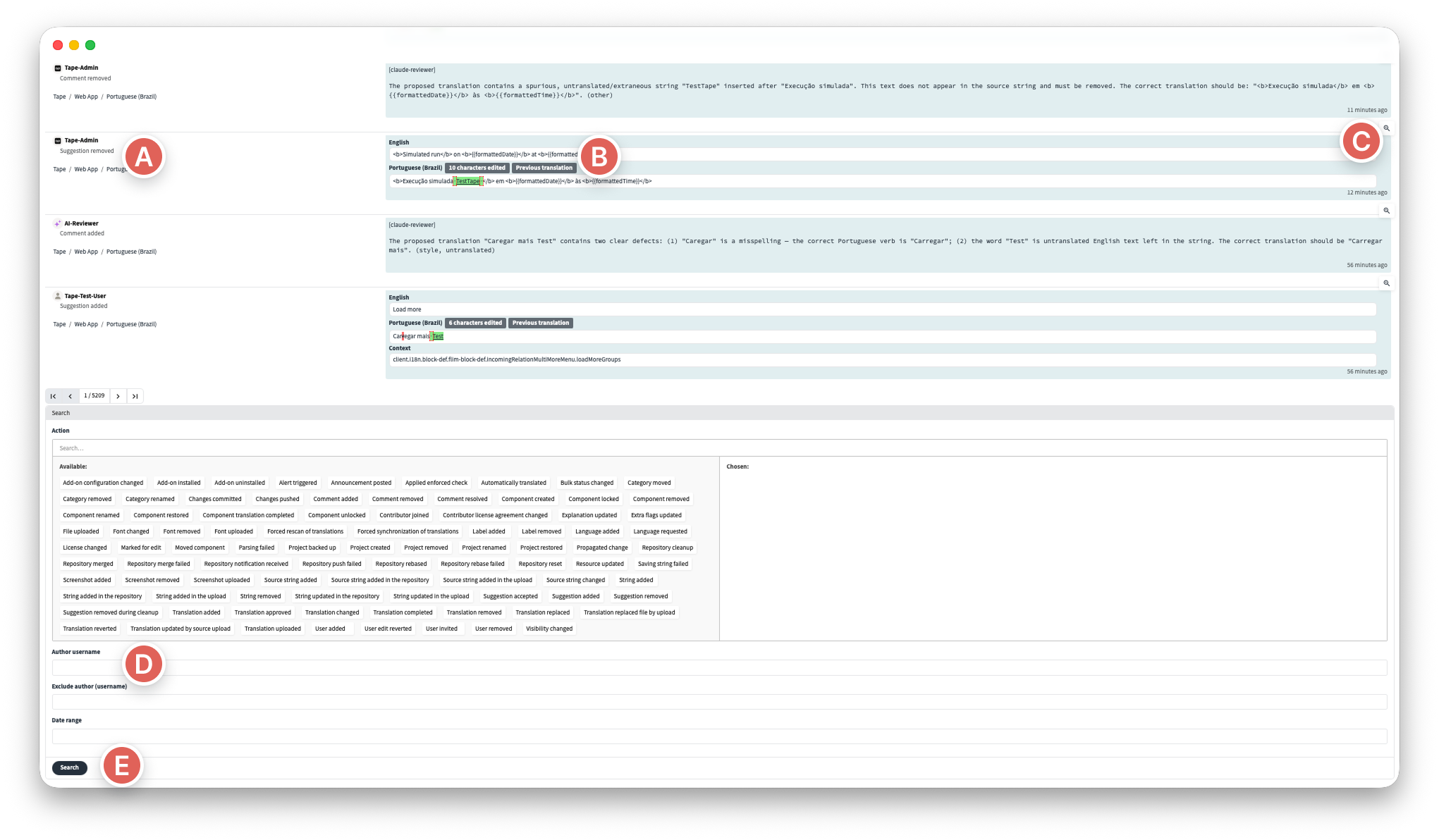
- (A) Actor and action column Shows who did something and what happened, for example
Tape-AdminandAdd comment. - (B) Details column Shows more context for the activity, for example a repository update or release detail.
- (C) Magnifying glass icon Opens the related string or activity detail.
After you click Browse all project changes at the bottom of the Activities page, you can use more filters:
- (D) Author username filter Use it to filter project changes by Weblate username.
- (E) Date range filter Use it to show project changes from a specific time period.
- (F) Search button Applies your filters and shows the matching project changes.
Feedback process
Tape now has 120,000+ translated words across languages. To keep feedback easy to handle, please use the right place for each type of feedback.
- A Tape user found a translation issue. Please use the announcement post for that language.
→ Brazil: comment on the Brazilian Portuguese announcement
→ More coming. - You have a question about the translation process or Weblate. Please comment below this guide.
- You have a question about a specific string. Add a comment directly on that string in Weblate. See Comments tab in the String editor tour above.
FAQs
About the workflow
Why can I only Suggest and not Save?
Every suggestion goes through an AI-assisted review before it goes live. This keeps translations consistent and protects Glossary terms.
You suggest the change. The review handles the rest.
What happens after I Suggest? When does my translation go live?
After you click Suggest, the AI-assisted review checks your suggestion.
Approved suggestions usually go live in Tape within about two weeks. If a suggestion is rejected, you will see a comment on the string explaining what needs to change.
The Suggest button jumps me to the next string. Can I stay on the same one?
No. This is how Weblate works.
To go back to the string you just edited, use the arrows below the breadcrumb path at the top left. Once you are back on the string, you can see your change in the History tab.
How do I see my own changes?
There are two ways:
- For one string: open the string and check the History tab.
- For all your changes: open project history, click Browse all project changes at the end of the page, enter your Weblate username under Author username, and click Search.
I disagree with the review comment on my suggestion. What can I do?
Add a Translation comment on the same string. Explain why your suggestion should be used.
A human reviewer will check it and make the final decision.
Finding strings
How do I find a specific string?
Open Search and paste the word, phrase, or full string key.
- Word match: paste
registerto find strings that containregister. - String key match: paste the full string key to find one exact string in any language.
Please do not use a key: prefix. Weblate can find the key directly when you paste it into Search.
How do I find an exact word, case-insensitive?
Paste this into the search field:
target:r"(?i)^membro$"
Replace membro with the word you want to find. This returns strings where the target text is exactly that word, no matter if it is written as Membro, membro, or MEMBRO.
Where is the history of a string?
Open the string in the String editor and click the History tab. It shows who changed what and when for this string.
Glossary and Variables
What are the Glossary terms in my string?
Those are official Tape terms for this language. When a Glossary term appears in a string, it can show up in the Glossary panel in the String editor. Please use the official translation shown there.
Can I edit Glossary terms?
No. Glossary terms are set by Tape and cannot be changed by translators. If you think a Glossary term is wrong, add a Translation comment on a string where it appears. The Tape team will review it.
What if a word appears in many strings? Do I have to change it everywhere?
Yes. Each string must be changed separately. There is no global “find and replace.”
If a word should be the same everywhere in Tape, for example “App”, “Record”, or “Workspace”, it likely belongs in the Glossary. Please check the Glossary before changing the same word in many strings.
Variables and plurals: what do I do?
- Variables (
{name},%s,{{blabName}}): keep them exactly as in the source. Never translate the variable name itself. Example for Portuguese (Brazil):Hello, {name}!becomesOlá, {name}!, notOlá, {nome}!. - Plurals: Portuguese (Brazil) has two forms: One and Other. Fill in both fields. Both are required. Example: One =
1 item, Other =5 itens. - HTML tags (
<b>,**text**): keep the tags around the translated text. Example:<b>Save</b> your changesbecomes<b>Salve</b> suas alterações.
Comments
What are the two comment types in Weblate?
- Source string comment: use this when the English source has a problem, for example a typo, unclear wording, or missing context. This comment is attached to the English source and can be seen across languages.
- Translation comment: use this when your comment is about the translation in your language, for example wording, UI context, or a review question. This comment is attached to the current language.
Simple rule:
- Problem with the English source → Source string comment
- Question or note about your translation → Translation comment
What if the English source itself is wrong?
Add a Source string comment on the string. Do not use a Translation comment for this.
Source string comments are visible across languages. The Tape team reviews the comment and fixes the English source if needed.
Feedback from users
How do Tape users send their translation feedback to us?
Tape users can share translation feedback in two ways:
- Direct message: if one of your customers reports a translation issue to you, or if a Tape user messages you directly, you can check it in Tape. If it is a real translation issue, suggest a fix in Weblate.
- Language announcement post: each language has its own announcement post in the Tape Community. Users can comment there with translation feedback.
Brazil: Brazilian Portuguese announcement
If you are not sure where feedback should go, comment on the language announcement post. The Tape team will help sort it.
Profile and view
Where can I change my profile settings?
Click your profile picture in the top right corner. Then click Settings in the dropdown.
What is my profile picture?
Weblate uses Gravatar for profile pictures. Create a Gravatar account with the same email address you use for Weblate. Your picture should appear in Weblate within 24 hours.
About Weblate
What is Weblate?
Weblate is the translation platform we use for Tape. You suggest translation changes there, the AI-assisted review checks them, and approved suggestions flow back into Tape.
Weblate has feature X. Why can't I find it here?
We keep Weblate simple on purpose. Some features, tabs, and dashboards are hidden so translators can focus on the actual translation work.
If you think a missing feature would help, please comment below this guide.
How can someone become a Tape translator?
Tape translators are invited by the Tape team. We usually invite people we already know through long-term partnerships or the Tape Community. They know Tape well, understand software, and are native or strong speakers of the language.
There is no self-signup. If you know someone who would be a good fit, please comment below this guide or message the Tape team.
Thank you for helping translate Tape. 