Relations have always been a core reason people choose Tape.
We’re happy to share this with you. Based on your feedback, relations are getting a major update. It makes a lot more possible, while keeping the core logic users already know and trust.
What is a relation field (quick recap)?
A relation field connects records between different database apps, so you can access data from one app within another. Click a linked record to navigate to it. Example use cases:
- Connect your database of tasks with your database of bigger projects to understand how projects are broken down into tasks, and how tasks contribute to projects.
- Connect your database of candidates with your database of interviewers to keep track of who interviewed whom.
 How to get started
Switch to the new record experience in one of your database apps.
(Click the ••• button in the top right, select “New Record Beta”, then click “Set as default for you” all details ➔)
Or get started with the template from the video:
- Duplicate the
 template workspace
 - Open any record
- Unlock the record via the
•••menu in the top right - Click the
+icon in the left margin whenever you hover over a new line. (Help Center ➔) - Select
Relationas the field type - Choose the database you want to connect
- Start linking records
Once you add a record to a relation field in one app, it appears in the reference section of the connected record in the other app.
The new relation field works
- in the new record experience
- in Tape Forms
- when you create & edit records via the mobile app
Community requests, now released:
✓ Collapse related records groups by 1F2Ns
✓ Show field details in linked records by comfreakph, by DigiTom
✓ Reorder the apps shown when creating a record by 1F2Ns
✓ Edit field values in related records from relation cards by toni, by DigiTom, CarsonRedCliffLabs
✓ Dynamic filtering of relation fields by toni, by 1F2Ns and by CarsonRedCliffLabs
✓ Show the field name in relation cards, not just the value by DigiTom
✓ Open related records in a new tab using a keyboard shortcut by 1F2Ns, by CarsonRedCliffLabs
✓ Customize the relation card layout for each app by CarsonRedCliffLabs
✓ Reorder related records by CarsonRedCliffLabs
✓ Switch existing relation fields between single and multiple records by Toni
Thank you so much for your feedback. A lot of what we’re releasing now comes from your feature requests. You play a big part in shaping Tape, and we hope you’ll keep sharing your ideas.
User highlight features:
- Work from both sides

If your contacts database is linked to companies through a relation field, you can create, add, and unlink records from both sides. Create a new company from a contact record, or a new contact from a company record, without switching between databases. - Reorder related records
Drag and drop to reorder linked records. The new order is saved. - Bulk actions
Select multiple related records by dragging with your mouse. Selected records are highlighted in blue.
Right-click to unlink or delete them.
With manual sorting enabled, you can reorder selected records together as a group. - Context menu
Right-click or use···on any linked record:- Add to favorites
- Open in new tab (
cmd/ctrl+shift+Enter) - Unlink (
cmd/ctrl+shift+U) - Copy link
- Duplicate (
cmd/ctrl+D) - Delete (
Del)
- Edit field values in Card layout
Update values directly in the card, without opening the record. - Collapse and expand groups
Each data source can be collapsed on its own. You’ll see the number of records next to the name.
For Builders
If you’ve been building with relations over the last year, some of this will already feel familiar.
Start with a relation field, add a record, and Tape takes care of the rest. The reference section appears in the linked record automatically. For many use cases, that’s all you need.
But feature requests showed that not every setup works best with references at the bottom of a record. Sometimes a reference fits better at the top. Sometimes it belongs inside a column. Sometimes you want to show related records in more than one place.
That’s why we built two new blocks for these cases.
 Here’s how it works today
- Relation field block
Connect databases to link records. Useful for linking related data across your organization. - Reference section
Records added through a relation field appear in the linked app as well, in the reference section at the bottom of the record.
You can now also hide this section entirely: open the•••menu in the top right in any record, chooseCustomize record, and turn Referencesoff.
 And now, two new blocks:
- Two-way reference block
Shows related records from one data source, without the app name header and other elements from the reference section. A good fit when you want to show linked companies inside a project record in a cleaner, more focused way. It can be configured to look like a relation field block. - References block
Shows related records from multiple data sources. You can group them by source or date to get a full overview or activity timeline. It works like the reference section, but you can use it more than once in the same record and place it anywhere, including inside columns.
More new features
Most of these settings are available in the menu that appears on hover next to the field label.
- Layouts for linked records
Choose the layout that fits the way you work:- Cards (Compact, List, or 2 to 5 columns)
Choose which fields are shown, change their order, and decide whether a field takes the full row - List
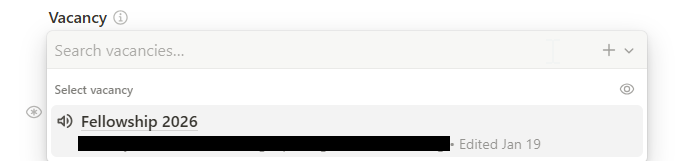
- Dropdown, available in the relation field and the two-way reference block. It works well when you want the feel of a select field, with the flexibility of a relation.
- Cards (Compact, List, or 2 to 5 columns)
- Style settings
A few examples:- Label display: None, Top, Left, Right, Icon only
- Label size: Default, Small, Small ?, Medium ?, Large ?
- Field style: Minimal, Borderless, Outlined, Raised, Filled
- Tooltip: Auto, Custom, None
- Button label: Auto, Custom
- And much more
- Rearranging blocks
Use the⋮⋮handle next to the field label to drag and drop blocks. You can reorder them, move them around the record, or place them into different columns.
- Display options
Available for the relation field and the two-way reference block:- Required
- Always show
- Hide when empty
- View only
- Always hide
- Control over linking behavior
Choose which records can be linked and how users can interact:- No limit, or limit it to a single record
- Choose a database view
- Use dynamic filters
- Select a default record through a relation field
- Allow linking existing records
- Allow unlinking
- Allow creating new records
- Load limits
Control how much is shown when a record opens. Users can load more when needed.- Card and dropdown layouts: set a limit from 5 to 100 records
- Groups: choose how many apps are shown first
- Data source settings
For the reference block and the reference section, you can control which apps are shown and how they appear:- Show or hide individual data sources
- Reorder data sources manually, alphabetically, or in reverse alphabetical order
- Group by data source, or by date to turn references into a timeline
- Relation field search upgrade
- Get all details here
- Premium plan features
- Rules: show or hide a relation based on other field values. Structure: When → Do: Hide block
- Field access: Control who can view the field and who can edit it.
- Dynamic filtering: set a filter on a relation field based on other fields in the current record. The picker updates as values change, so the available records always depend on the context. See more details here
New Use Cases
There are many new ways to use relations. Here are a few examples we’ve already built ourselves:
- Activity timeline
Use relation fields to link Events, Tasks, and Service Tickets to a Contact database app. Add a reference block, group by date, and every interaction appears in one chronological timeline. - Relation as dropdown
Set the relation field layout to Dropdown. Users pick from a list that feels like a select field, while still linking to a full record behind the scenes. - Product list
Set the relation field to only allow linking existing records. Users pick from the catalog database, and duplicate products are avoided. - Support logs
Set the relation field to only allow creating new records. Each note becomes a new record, instead of linking to one that already exists.
Thank you
A big thank you to Tape’s community, to all of you. Your ideas and the years of experience behind them are a big part of how Tape keeps improving, and this release is a big step forward.
From the beginning, we wanted to build Tape with the community. That part has never changed. We love building it with you.
And to Tape’s developers, sorry  A lot came from the product side, and it brought quite a few technical challenges with it. Thank you for your patience, for the extra work, and for all the energy you put into this. Now it’s here, and I really think it was worth it.
 Share your feedback
We’re curious to see how you’re using relations, what’s already working well, and what still feels missing.
➔ Feature Requests
➔ Bugs & Issues
If Tape is helping your team, leaving a review helps us grow the community, and it means a lot to us.
➔ Rate Tape on G2
Happy building.


 this is such a big update that my brain froze when I saw it!!